
How to export your data from Jobber: clients, jobs, visits, invoices and timesheets
The short answer
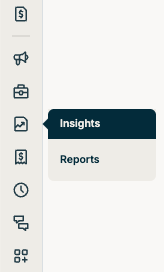
Jobber lets you export almost everything you enter. The catch: the exports sit in two different places, the buttons go by four different names, and no file is downloaded. Every export is emailed to you. Your client contact list is exported from the Clients page (More Actions, then Export Clients). Everything else (a summary per client, jobs, visits, invoices, timesheets) comes from Insights, then Reports. Open the report and click Export; on Timesheets and 11 other reports the button is called Receive Excel Copy.
What I describe here comes from tests I ran in a Jobber test account on Nov 23, 2026. The account holds test jobs and visits dated Oct 27 to Nov 18. Your screens may differ by plan, by permissions or after a Jobber update. Where I rely on Jobber's own help pages, I link to them.
What you can export, and where
| What you want | Report (under Insights, Reports) | Button | You get |
|---|---|---|---|
| Client contact details | Client contact info | Receive Excel Copy | An email with the file |
| Property addresses | Property list | Receive Excel Copy | An email with the file |
| Client summary (jobs and invoices per client) | Clients | Export | An email with a CSV file |
| Jobs (recurring) | Recurring jobs | Export | An email with a CSV file |
| Jobs (one-off) | One-off jobs | Export | An email with a CSV file |
| Visits | Visits | Export | An email with a CSV file |
| Invoices | Invoices | Export | An email with a CSV file |
| Timesheets | Timesheets | Receive Excel Copy | An email with a CSV file |
Three things hold for every row. You need to be signed in at jobber.com in a browser; the reports are not in the Jobber app. The file goes to the email address you are signed in with. And almost every export asks whether you want all columns or only the ones you have selected; the Taxation and Job follow-up emails reports are the two that don't.
All 28 Jobber reports and their export buttons
Jobber's Reports page lists 28 reports in five groups. I opened every one in my test account and noted the export button. Two button names cover 24 of them: the newer reports have Export (next to Edit columns), and the older ones have Receive Excel Copy (next to Columns). Both open the same two choices, all columns or selected columns.
| Group | Report | What Jobber says it holds | Export button |
|---|---|---|---|
| Financial | Projected income | Projected income from invoices awaiting payment | Receive Excel Copy |
| Financial | Transaction list | All transactions from invoices, payments and deposits | Receive Excel Copy |
| Financial | Invoices | Invoices report with additional client data | Export |
| Financial | Taxation | Tax totals, total awaiting collection, and total by tax rate | Export to CSV |
| Financial | Aged receivables | Invoices that are late by 30, 60 and 90+ days | Receive Excel Copy |
| Financial | Bad debt | All invoices marked as bad debt | Receive Excel Copy |
| Financial | Client balance summary | Full list of customer account balances | Export |
| Financial | Client balance summary (Legacy) | Full list of customer account balances | Receive Excel Copy |
| Work | Visits | Visits report with additional custom field data | Export |
| Work | One-off jobs | One-off job report with additional client and job data | Export |
| Work | Recurring jobs | Recurring jobs report with additional client data | Export |
| Work | Requests | Requests and assessments report | Export |
| Work | Checklists | Detailed checklists data | Export |
| Work | Quotes | Quotes report with additional client data | Export |
| Work | Team productivity | Productivity metrics for each team member | Export |
| Work | Salesperson performance | Conversion rate information for each salesperson | Export |
| Work | Products & Services | Full usage of products and services on quotes, jobs and invoices | Receive Excel Copy |
| Work | Waypoints | Full list of GPS waypoints logged | None seen (no data in my account) |
| Work | Timesheets | All time tracked for the team | Receive Excel Copy |
| Expense | Expenses | All tracked expenses and their details | Receive Excel Copy |
| Client | Clients | All clients with information about which lead channels they came from | Export |
| Client | Lead source | Revenue by lead source | Export |
| Client | Client communications | All email messages sent through Jobber | Receive Excel Copy |
| Client | Job follow-up emails | All job follow-up emails sent to clients | Download Excel File |
| Client | Client contact info | All clients and their contact info | Receive Excel Copy |
| Client | Property list | All properties and their details | Receive Excel Copy |
| Client | Client re-engagement | Clients that haven't had a closed job in the past 12 months | Receive Excel Copy |
| Account | Delete log | Log of deleted clients, quotes, jobs, invoices and other objects | None |
The rest of this guide walks through the exports owners ask about most: clients, jobs, visits, invoices and timesheets.
How to export clients from Jobber
- Open Clients in the left menu.
- In the top right, click More Actions, then Export Clients.
- In the pop-up, choose CSV (for a spreadsheet) or vCard (for an address book).
- Check your inbox. Jobber emails you the list.
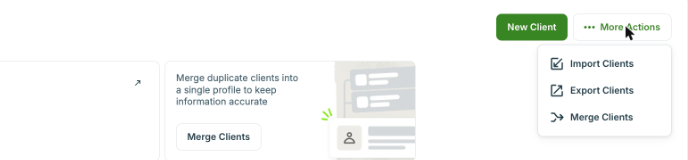
To export only some clients, pick a tag from the dropdown in the pop-up before you choose the format. I have no tags set up in my test account, so I could not try this myself; Jobber says that if you pick several tags, only clients that carry all of them are exported.
One limit to know about: a client CSV holds up to 1,500 rows. With more clients than that, the email carries several files, and you have to stack them yourself.
It's important to call out that the status filter on the Clients page does not carry over to the export. You can filter the list on screen (to active clients, for example), but the file still contains every client, including the ones you filtered out. If you only want some of your clients, use a tag.
The Clients report: what each client has brought in
There is a second client export, and it answers a different question. Under Insights, then Reports, the Clients report lists every client with their totals. I exported it from my test account. The file has one row per client and these columns:
- Client name, Status, Phone, Email
- Lead source, UTM source, UTM medium, UTM campaign, UTM term, UTM content
- Consent for SMS marketing, Consent for email marketing
- Created date
- Sent quotes, Sent quotes ($), Conversion rate (%)
- Jobs, Jobs ($)
- Invoices, Invoices ($)
- Tags, Payment method on file
- One column per custom field (mine is called Pets)
What it does not have: addresses. For those you need the contact list export above.
The two dollar columns give you a total per client for jobs and for invoices, without opening each client. That makes this the file to start from if your question is which clients bring in the most.
Set the filters before you export, because this report only exports what is on screen. It has four: client, status (it starts on Leads and Active, so clients with any other status are left out until you change it), tags and a date range.
The date range is the one that surprised me. In my tests it selects clients by the date they were created, not by when the work happened. All my test clients were created on November 5. A range of November 5 to 13 listed every one of them with their full job and invoice totals, including work completed after the 13th. A range of November 6 to 13 came back empty. So the dollar columns are each client's totals to date, and the date range only decides which clients are on the list. To get all your clients, start the range before your first client was created.
How to export jobs and visits from Jobber
Jobber has no single "export all jobs" button. Jobs come out of two reports (recurring and one-off), and the work you actually did comes out of a third (visits). All three sit under Insights, then Reports, in the Work reports group.
Recurring jobs
- Open Insights, then Reports, then Recurring jobs.
- Set the date filter. It starts on "Started on"; I switch it to "Visits within", which lists every recurring job that had a visit in the range I care about.
- Check the status filter. It starts on Active jobs, so closed jobs are left out unless you change it.
- Click Edit columns and tick what you need (or all of them).
- Click Export, then choose All Columns or Selected Columns.
One thing this report will not give you: job costing data is not available in the recurring jobs report.
I cover what job costing does and doesn't tell you about recurring customers in Does Jobber's job costing show which recurring customers to raise?
One-off jobs
The steps are the same under Insights, Reports, One-off jobs. This report does carry cost and profit columns: total costs, profit in dollars and profit in percent.
Two differences from the recurring report: the date filter is called "Scheduled visits within", and there is a Profitability filter. Next to the totals I also saw columns for expenses, labor cost, line item cost and time tracked. What those profit columns count, and what they leave out, is in Jobber profit margin: where to find it.
Visits
- Open Insights, then Reports, then Visits.
- Choose "Start within" and a date range. (The other choice, Unscheduled, lists visits that have no date yet.)
- Click Edit columns and tick what you need.
- Click Export, then All Columns or Selected Columns.
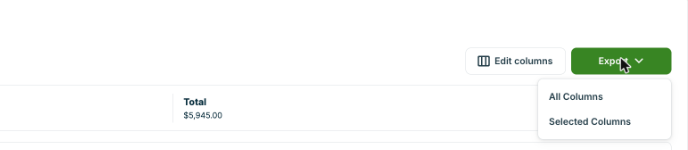
A tip from my own testing: end the date range yesterday. Today's visits are often half-finished, and the hours in the file will be too.
Be careful with the price column if you have ever raised a recurring customer. How you changed the price in Jobber decides what this report shows. If you edited the price on the job's line item, Jobber applies it to the past visits too, and every historical price in the export is wrong. If you changed it the other way (a new service item at the new price, applied to future visits), completed visits keep the price they had. I walk through both in How to raise the price of a recurring job in Jobber. When in doubt, the Invoices report is the record of what you actually billed.
How to export invoices from Jobber
- Open Insights, then Reports. Under Financial reports, open Invoices.
- Pick which date the range applies to. Jobber offers created date, issued date, due date or paid date.
- Set the date range.
- Click Edit columns and tick what you need.
- Click Export, then All Columns or Selected Columns.
Each row is one invoice: the invoice number, the client, the job numbers it covers, the dates, the status, the line items and the totals. The file also carries the client's email, phone number and billing address, so treat it with care before you forward it to anyone.
How to export timesheets from Jobber
This is the export people miss, because the button has a different name.
- Open Insights, then Reports, then Timesheets.
- Set the date range.
- Click Receive Excel Copy, then All columns or Selected columns. (This report has no Export button; it still uses the older button name.)
- Check your inbox.
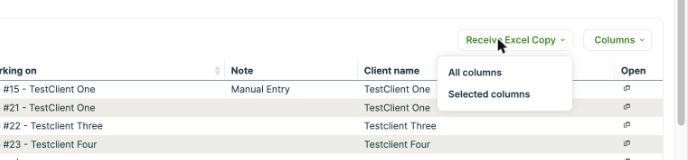
Despite the button's name, the file is a CSV. It has one row per time entry. The report's columns are Name, Date, Start time, End time, Hours, Working on, Note and Client name. "Working on" is either a job, shown as the job number followed by the client's name (for example "Job #15 - TestClient One"), or a label such as Driving or General for time that belongs to no job.
Two things to know before you use the file. You can untick the Client name column, but the customer's name still appears inside Working on, so the file carries customer names either way. And the totals at the bottom of the file are Jobber's own sums, so don't add them in again if you total the Hours column yourself.
Two related guides go deeper on this file. Does Jobber count drive time per client? explains where driving and general time end up. Scheduled versus tracked time in Jobber shows how to find the visits that run long.
What the exports leave out
It's important to call out what you will not get, because some of it only shows up once you open the files.
- No download. Nothing lands in your Downloads folder. Every export arrives by email, usually within a minute or two in my tests.
- Not every report exports. Jobber says the Taxation, Waypoints and Job Follow-ups reports cannot be exported. I believe that is out of date for two of the three. In my test account, Taxation has an Export to CSV button and Job follow-up emails has a Download Excel File button. I could not check Waypoints, because my account has no waypoint data. The one report where I found no export at all is the Delete log.
- Past prices. The Visits report can show today's price on old visits, depending on how the price was changed (see above). Invoices are the record of what you billed.
- Job costing on recurring jobs. Cost and profit columns exist for one-off jobs only.
- One file per report. The files are not linked to each other. To see what a customer pays per hour of work, you have to match visits, timesheets and invoices on the job number yourself.
- Invoices don't point back to visits. An invoice row lists the job numbers it covers in one cell (the Job #s column) and all of its line items, each with a quantity and a total, in another. Nothing in the file says which visit a line belongs to. If an invoice covers two jobs, or a month of visits on a recurring job, you have to work out the match yourself from the service name and the dates.
- Few IDs. The reports identify most things by name. In the files I exported there is no client ID and no visit ID; clients appear by name only, so two clients with the same name are hard to tell apart. The job number is the one key that shows up across Visits, Recurring jobs, Timesheets and Invoices, and in Timesheets it sits inside the Working on text. That makes joining data from different reports harder than it should be.
A limit of this guide: I opened every report to note its export button, but I only exported and read the files for clients, recurring jobs, visits, invoices and timesheets. For the other reports I can tell you the button is there, not what the file looks like.
What to do with the files
The visits, timesheets and invoices together answer a question no single Jobber screen does: what each recurring customer pays you per labor hour. You can work that out yourself from the Visits report, or let the WellPriced audit do the matching: it takes these same four reports (visits, recurring jobs, timesheets and invoices) and ranks every recurring customer. You can see a sample audit first.
If you are exporting for the audit, the export instructions for the audit list the exact date range and column settings for each of the four reports.
Questions owners ask
How do I export clients from Jobber?
Open Clients, click More Actions in the top right, then Export Clients, and choose CSV or vCard. Jobber emails the list to you. The file holds every client, whatever status filter is set on screen.
How do I export jobs from Jobber?
Jobber has no single export for all jobs. Open Insights, then Reports, and export the Recurring jobs report and the One-off jobs report separately, each with the Export button.
How do I export invoices from Jobber?
Open Insights, then Reports, then Invoices under Financial reports. Set the date range, click Export and choose All Columns or Selected Columns. Each row in the file is one invoice.
How do I export timesheets from Jobber?
Open Insights, then Reports, then Timesheets. Set the date range and click Receive Excel Copy. This report has no Export button, and the file it emails is a CSV.
Can I export all my Jobber data at once?
I found no single button for it. You export the client list from the Clients page and each report on its own.
Can I export Jobber data to Excel?
Yes. The CSV files open in Excel, Google Sheets or Numbers. On the Timesheets report the button is called Receive Excel Copy, but the file it sends is a CSV as well.
Where does my export go?
To the inbox of the email address you signed in to Jobber with. If it doesn't arrive, check that you are signed in with the address you expect.
Can Jobber send me a report automatically?
Jobber offers a Report Scheduler app that delivers some reports to your inbox on a schedule, including invoices, visits, one-off jobs and recurring jobs. I have not tested it.
Do the exports include my customers' contact details?
The client list and the Invoices report do. In the Visits and Recurring jobs reports you can untick the email and phone columns before you export.
More Jobber how-tos
- How to raise the price of a recurring job in Jobber (without rewriting your history)
- Scheduled versus tracked time in Jobber: how to find the visits that run long
- Does Jobber count drive time per client? Where it sits and how to assign it
- Jobber profit margin: where to find it, and what it leaves out
Sources
- Jobber Help, Reports basics
- Jobber Help, Export client information
- Jobber Help, Recurring jobs report
- Jobber Help, One-off jobs report
- Jobber Help, Visits report
- Jobber Help, Invoices report
- Jobber Help, Report Scheduler
WellPriced isn't affiliated with or endorsed by Jobber. Screens and labels are as I found them on Nov 23, 2026, and may change.