
How to export your Jobber reports
About 10 minutes. Use the same date range for all four reports: your full history in Jobber, ending yesterday, so today's hours don't come out half-finished.
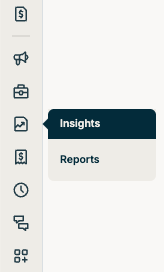
- Reports, then Visits. Set the date range. Under Columns, select all. Export to CSV.
- Reports, then Recurring jobs. Set the date filter to "Visits within" and the same date range, and leave the status filter on Active jobs. All columns. Export to CSV.
- Reports, then Timesheets. Same date range, all columns, then "Receive Excel copy."
- Reports, then Invoice Report (under Financial reports). Same date range, all columns. Export to CSV. Jobber's visit report shows every past visit at today's price; your invoices show what you actually billed. If you don't invoice in Jobber, skip this one.
- Upload the four files Jobber emails you on your data review page; your account page links to it. When we can take your audit, we'll email you an invite to create your account.
Want a rough first look before your audit? Work out revenue per labor hour from the Visits report yourself.
Can't find one of the reports, or your screen looks different? Send us a message with what you see and your Jobber plan, and we'll sort it out.